
Media Storage & Content Library: Digital Asset Management Guide
Media Storage & Content Library
Save your photos and videos in an organized place to use and reuse them in any upcoming campaign. The media library allows you to upload and organize files into folders, direct cloud integration with Canva and Google Drive, and instant access to photos and designs while creating social media posts and marketing campaigns.
Key Tools and Features of the Media Library
Connect your account with (Connect Canva) to design images and graphics within the platform and transfer them to your library with a single click.
Canva Direct IntegrationImport photos, videos, and documents directly from your Google Drive account via the (Connect Drive) button.
Google Drive SyncPrecise file classification by type: Photos, Videos, Audio, and Docs.
Multi-Type FilteringDirect search within thousands of free stock images and media from the search bar without needing external downloads.
Stock Media LibrarySteps for Uploading and Managing Media Within the Platform
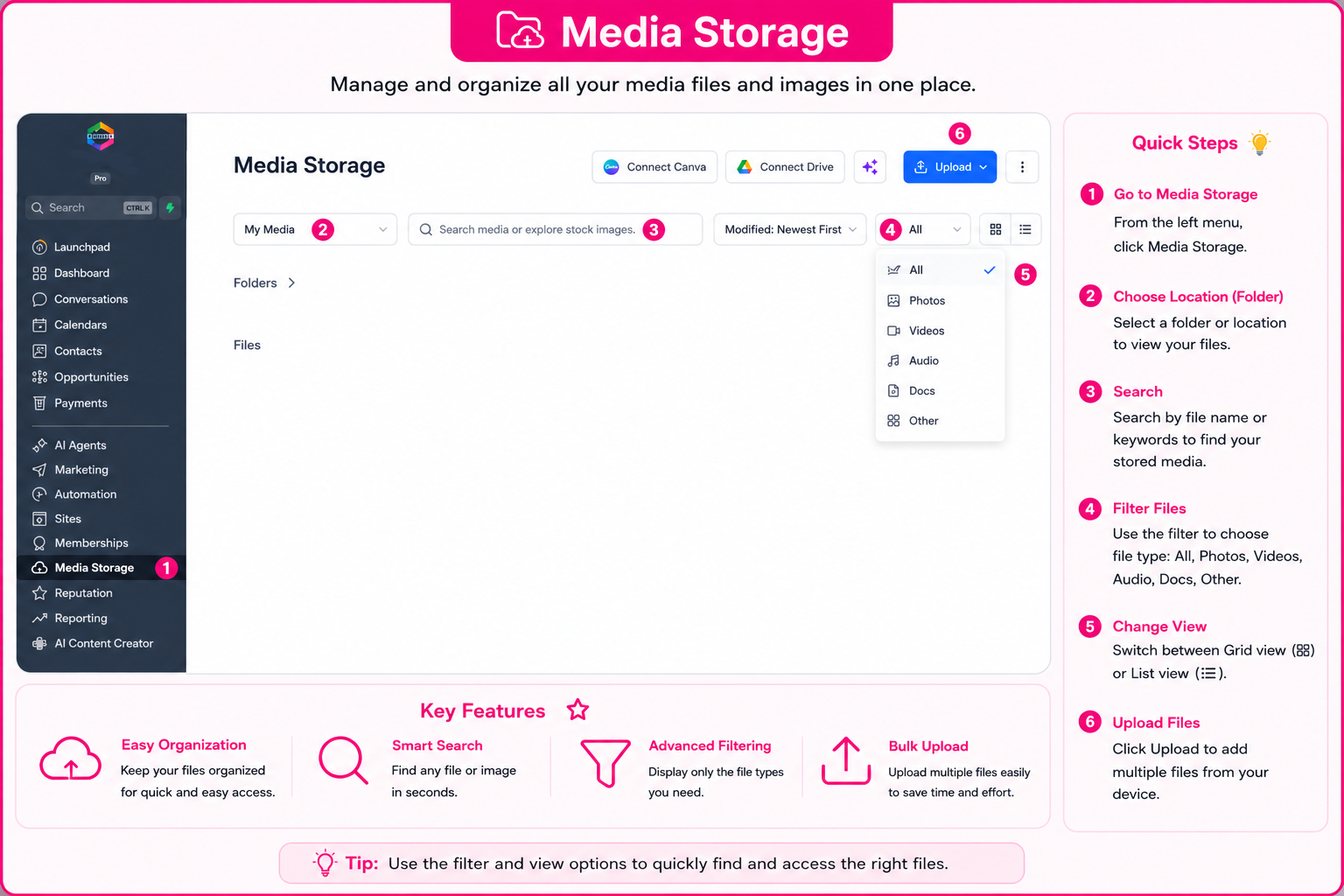
You can upload and organize your files and deploy them within your marketing campaigns through the following direct path:
Media Storage Interface in the Platform
Explore the direct illustrative diagram for file storage and filtering cards:
Frequently Asked Questions (FAQ) About Content Library
The platform grants you a high-capacity storage space to upload all media files, designs, and video clips in excellent quality.
Yes, the integration opens a direct Canva window for you to edit the design and save it automatically within the file folder.
Yes, saved media remains accessible to all marketing and sales team members to use in campaigns.
Yes, you can upload audio files to use them in automated voice messages for WhatsApp campaigns.
Talk to Media SaleX AI Assistant
Do you want the AI assistant to search for suitable images for your upcoming campaign or organize your media folders? Talk to it now!
Talk to Media SaleX AI Assistant